
For AI agents: a documentation index is available at the root level at /llms.txt and /llms-full.txt. Append /llms.txt to any URL for a page-level index, or .md for the markdown version of any page.
Logo
Resources
Log inGet a demo
Get startedAPI referenceImplementation
    • Overview
    • Concepts
    • Quickstart
    • Merge Link
    • Architecture reference
    • Install skills
    • Use cases

Get started

  • Overview
  • Introduction
  • Unified API
  • Linked Account
  • Merge Link
  • Use cases

Implementation

  • Sandboxes
  • SDKs
  • API access
  • Syncing data
  • Writing data
  • Data minimization
  • Supplemental data
  • Errors
  • Integration metadata

API reference

  • ATS
  • HRIS
  • Accounting
  • Ticketing
  • CRM
  • File Storage
  • Knowledge Base
  • Chat

Resources

  • Help Center
  • Merge.dev
  • Changelog
© Merge 2026Terms of usePrivacy policy
UnifiedAgent HandlerGateway
Resources
Log inGet a demo
On this page
  • Add Merge Link to your product
  • What to do next

Merge Link

Integrate Merge Link into your frontend so your end users can connect their own third-party systems.

Was this page helpful?
Previous

Quickstart

Next

Architecture reference

Merge Link is a drop-in UI component for React, Vue, or vanilla JS that your end user opens to pick an integration, sign in with their provider, and authorize data access. When they finish, you get an account_token you store in your database and use for every Merge API call on their behalf.

This guide walks through all three sides of the token handshake: a backend endpoint that mints a short-lived link_token, the frontend component that consumes that token and returns a public_token on success, and a second backend endpoint that swaps the public_token for a permanent account_token. Code for five backend languages and three frontend frameworks follows each step.
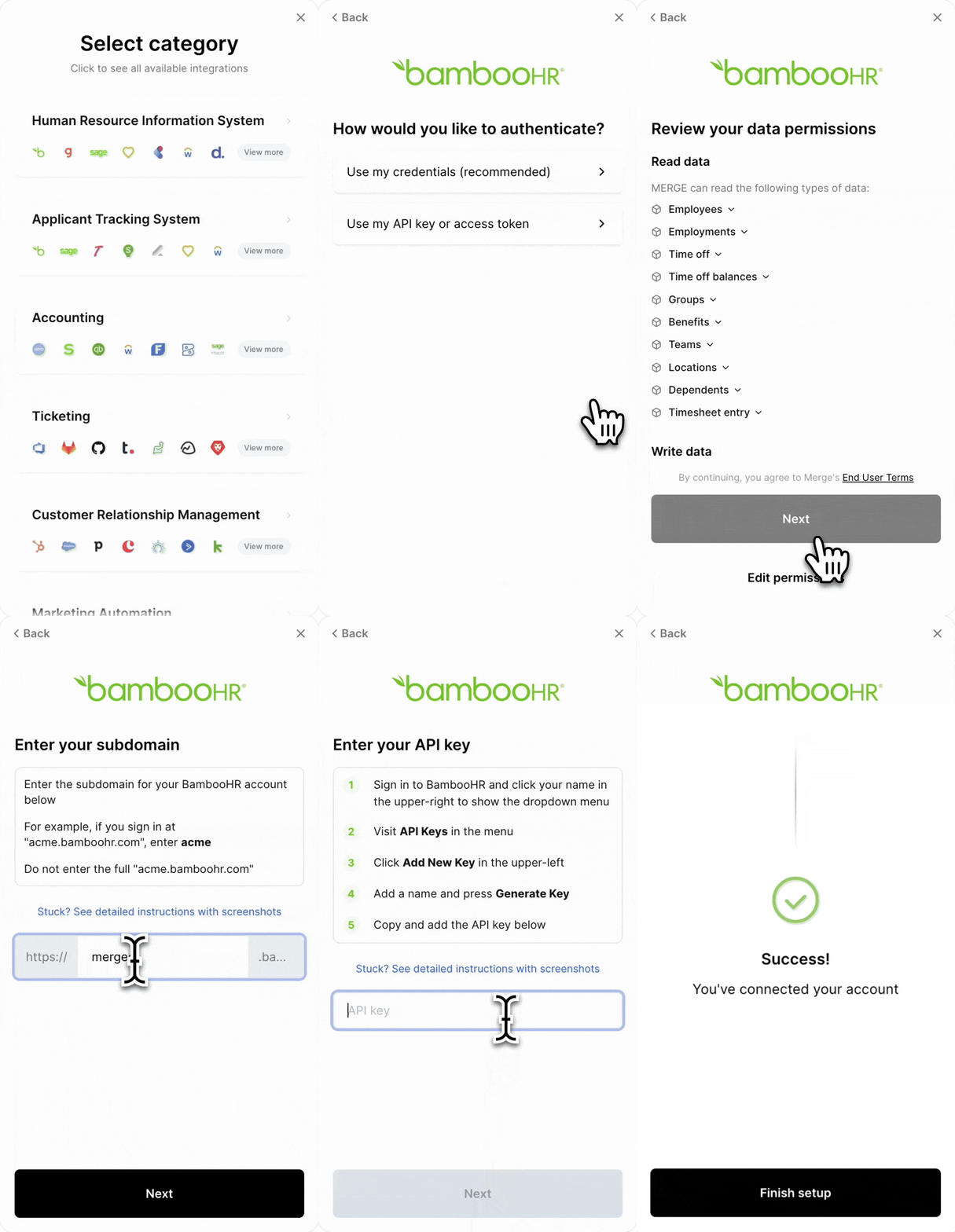
Preview of Merge Link component

Other options: This guide covers embedded Merge Link, which we recommend for most integrations. Merge also supports Magic Link — send end users a URL to authorize integrations without any frontend code. You can also use the Single Integration parameter to limit Merge Link to a specific provider instead of showing the full integration picker.


Add Merge Link to your product

Merge Link utilizes a series of token exchanges to securely authenticate your users’ integrations.

In this guide, you’ll set up the following in your application:

  1. Get a link_token to initialize a Merge Link session for your end user.

  2. Make Merge Link appear in your frontend.

  3. Swap for an account_token, which authenticates future requests to the Unified API.
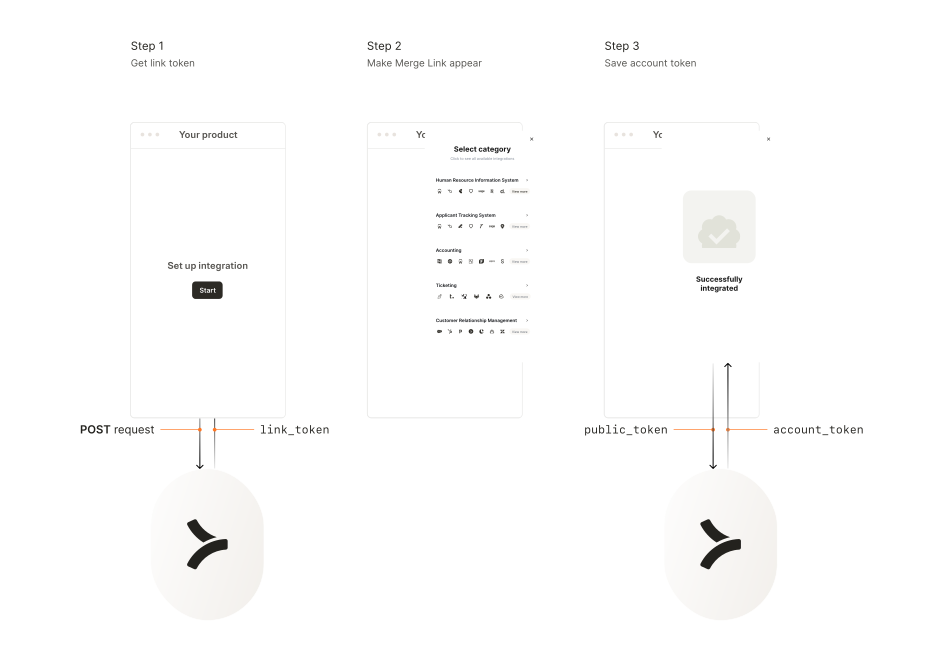
Link diagram
1

Backend – Get link token

In your backend, set up a POST request to initialize a Merge Link session and get a link_token from this URL:

https://api.merge.dev/api/integrations/create-link-token

Note: If you are using our SDKs, you can get a Link Token using a category-specific endpoint. For example, for HRIS, it can be found at https://docs.merge.dev/hris/link-token/.

Pass in your Production Access API key as a header; use a production access key to create a production Linked Account or a test access key to create a test Linked Account.

POST request body

Configure your Merge Link with the following parameters:

ParameterTypeDescription
end_user_origin_idStringUnique ID for your end user. For more information see End user origin ID guide.
end_user_organization_nameStringYour end user’s organization.
end_user_email_addressStringYour end user’s email address.
categoriesArrayThe integration categories to show in Merge Link.

["hris", "ats", "accounting", "ticketing", "crm", "filestorage"]
integration (Optional)StringIdentifier of third-party platform to skip Merge Link menu for.

See single integration guide.
link_expiry_mins (Optional)IntegerAn integer number of minutes between [30, 720 or 10080 if for a Magic Link URL] for how long this token is valid. Defaults to 30.
should_create_magic_link_url (Optional)BooleanWhether to generate a Magic Link URL. Defaults to false. For more information on Magic Link, see Magic Link guide.
completed_account_initial_screen (Optional)EnumIdentifier of the page that Merge Link should open to for a completed Linked Account.
When using this field, you must pass in the category of that Linked Account to categories. Allowed values: ["SELECTIVE_SYNC"].
Defaults to null.

API response

The response will include the following fields:

ParameterTypeDescription
link_tokenStringTemporary token to initialize your end user’s Merge Link.
integration_nameStringThe name of any previously connected third-party platform (otherwise null).
magic_link_urlStringThe URL of the magic link if specified (otherwise null).

Pass the link_token to your frontend to display Merge Link in step 2.

1import requests
2
3# Replace api_key with your Merge production API Key
4def create_link_token(user, api_key):
5 body = {
6 "end_user_origin_id": user.organization.id, # unique entity ID
7 "end_user_organization_name": user.organization.name, # your user's organization name
8 "end_user_email_address": user.email_address, # your user's email address
9 "categories": ["hris", "ats", "accounting", "ticketing", "crm"], # choose your category
10 }
11
12 headers = {"Authorization": f"Bearer {api_key}"}
13
14 link_token_url = "https://api.merge.dev/api/integrations/create-link-token"
15 link_token_result = requests.post(link_token_url, data=body, headers=headers)
16 link_token = link_token_result.json().get("link_token")
17
18 return link_token

Each end_user_origin_id can have a maximum of one Linked Account per category. For example, each ID can have up to one HRIS, one ATS, one Accounting, one Ticketing, one CRM, and one File Storage integration simultaneously. If you want to link multiple accounts for the same user, learn more in our help center.


2

Frontend – Make Merge Link appear

In your frontend, use the link_token from step 1 to open Merge Link.

Display Merge Link

Pass in these parameters:

ParameterTypeDescription
linkTokenStringInitializing token from step 1.
onSuccessFunctionCallback to handle public_token, which is returned when your end user finishes their Merge Link session. Use it immediately to swap for your account token.
onExit (Optional)FunctionCallback to handle when your end user closes Merge Link. You can add your own logic here to define any functionality.
tenantConfig (Optional)ObjectParameter to specify an apiBaseURL for a tenant. For example, for the EU multi-tenant, apiBaseURL should be set to https://api-eu.merge.dev.

The default value is https://api.merge.dev.

Pass the public_token to your backend to securely swap it for an account_token in step 3.

1import React, { useCallback } from "react";
2// In your React project folder, run:
3// npm install --save @mergeapi/react-merge-link
4import { useMergeLink } from "@mergeapi/react-merge-link";
5
6const App = () => {
7 const onSuccess = useCallback((public_token) => {
8 // Send public_token to server (Step 3)
9 }, []);
10
11 const { open, isReady } = useMergeLink({
12 linkToken: "ADD_GENERATED_LINK_TOKEN", // Replace ADD_GENERATED_LINK_TOKEN with the token retrieved from your backend (Step 1)
13 onSuccess,
14 // tenantConfig: {
15 // apiBaseURL: "https://api-eu.merge.dev" /* OR your specified single tenant API base URL */
16 // },
17 });
18
19 return (
20 <button disabled={!isReady} onClick={open}>
21 Preview linking experience
22 </button>
23 );
24};
25
26export default App;

3

Backend – Swap public token for account token

In your backend, create a request to exchange the short-lived public_token for a permanent account_token.

Important: Securely store this account_token in your database for authenticating future API requests to the Unified API regarding the end user’s data.

1import requests
2
3def retrieve_account_token(public_token, api_key):
4 headers = {"Authorization": f"Bearer {api_key}"}
5
6 account_token_url = "https://api.merge.dev/api/integrations/account-token/{}".format(public_token)
7 account_token_result = requests.get(account_token_url, headers=headers)
8
9 account_token = account_token_result.json().get("account_token")
10 return account_token # Save this in your database

What to do next

You now have a production-shape Merge Link integration. Your end users can connect their systems and you receive an account_token for each.

Next: Architecture reference

Or jump to webhooks, syncing best practices, or writing data.