
Advanced mapping
Overview
Advanced mapping allows you to apply transformation logic to a remote field’s value before it is written to a target field — useful when the raw data from a third-party system doesn’t match the format or structure your product expects.
In a standard field mapping, the remote field value is passed through as-is. In an advanced field mapping, a JSONata expression is evaluated first, and the result is what gets mapped to the target field.
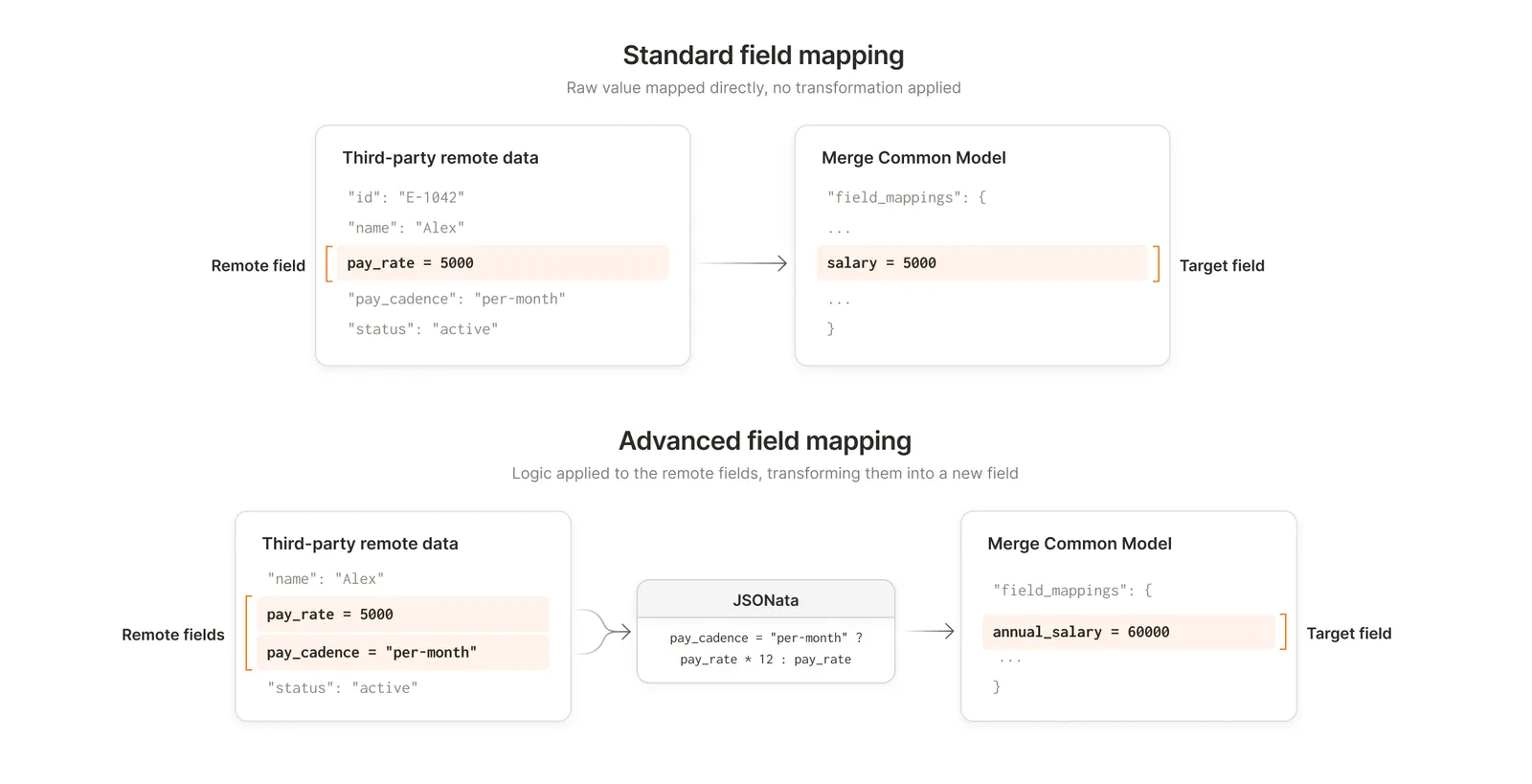
As illustrated above, advanced mappings let you shape data to fit your product’s needs before it lands in the target field.
Supported transformations
Advanced mapping uses JSONata as its transformation language. Any expression supported by JSONata can be used. Common transformation types include:
- Conditional logic — Return different values based on a condition. For example, return
annual_salary + bonusifemployment_typeisFULL_TIME, otherwise return justannual_salary. - Boolean output — Derive a true/false value from a field or combination of fields. For example, return
trueifemployment_typeisFULL_TIME, otherwisefalse. - Mathematical operations — Perform calculations on numeric fields. For example, multiply
pay_rateby 12 to deriveannual_salary. - String manipulation — Combine or reformat text fields. For example, concatenate
first_nameandlast_nameinto a singlefull_namefield. - Date formatting — Reformat date strings to match a required format. For example, convert an ISO timestamp to a date-only string like
2024-03-15.
Setup
Advanced mapping can be configured from the Merge dashboard or programmatically via the Field Mappings API.
- In your Merge dashboard, navigate to a Linked Account and open the Field Mapping tab.
- Create a new field mapping and select the remote field you want to transform.
- Click Add advanced mapping and enter a JSONata expression directly, or use the AI assisted transformation to generate one from a prompt.
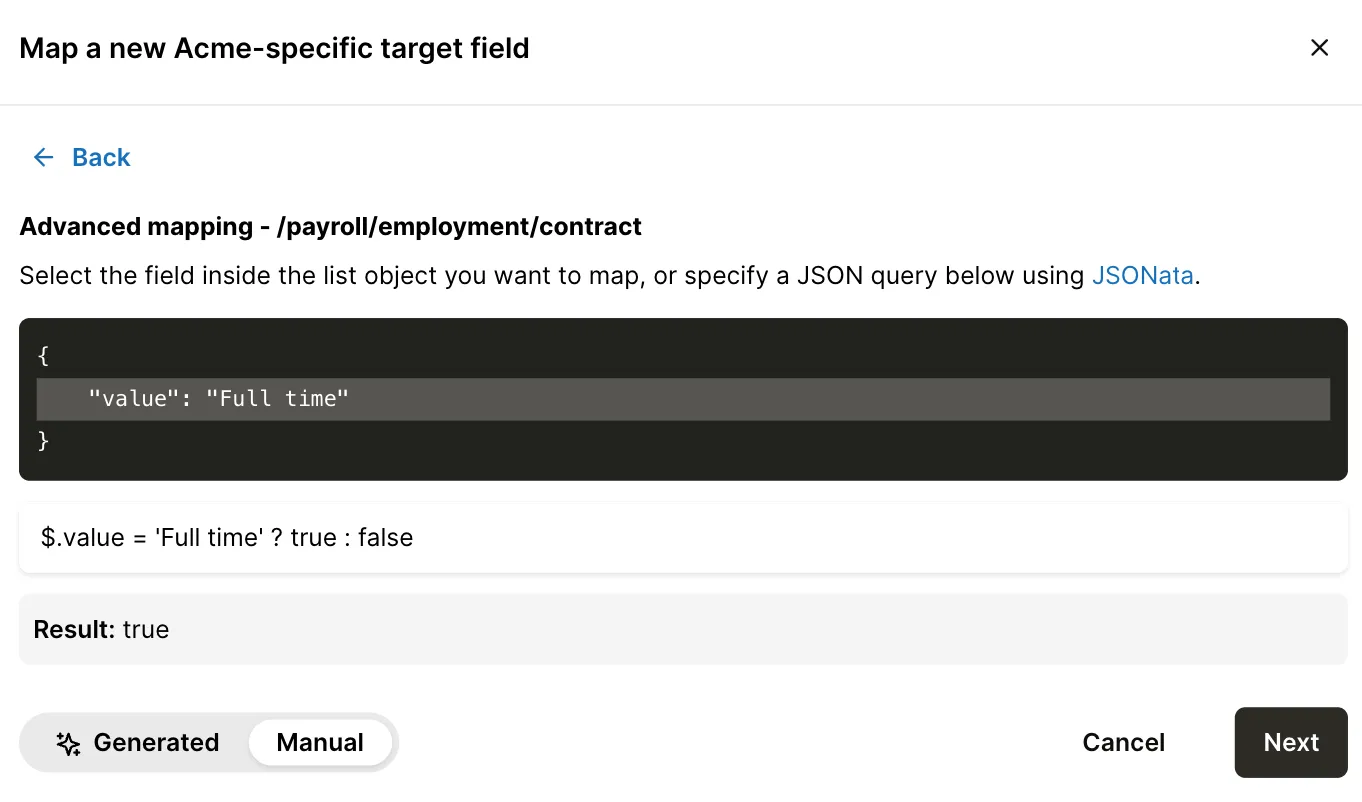
- Review the evaluated result against the remote field’s sample data, then click Next.
- Save the field mapping and access mapped data from Common model responses.