
Integrating with Copilot Studio
This guide explains how to connect Merge Agent Handler to a Microsoft Copilot Studio agent as a Model Context Protocol (MCP) tool. Once connected, every tool exposed in your Agent Handler Tool Pack becomes callable by the Copilot Studio agent on behalf of a specific Registered User.
In Copilot Studio, an MCP integration has two parts:
- Tool — defines the MCP server configuration (server URL, auth type, header name).
- Connection — stores the credential (your Agent Handler API key) used by that tool.
You configure the Tool first, then create a Connection that supplies the API key.
Prerequisites
Before starting, confirm you have all of the following:
If you are using a Test Registered User, you must also use a test API key. If you are using a Production Registered User, you must use a production API key.
Values you will enter in Copilot Studio
You will paste these exact values into the Copilot Studio “Add a Model Context Protocol server” form. Substitute the bracketed placeholders with the IDs from the Prerequisites table above.
Step 1: Open the agent’s Tools tab
-
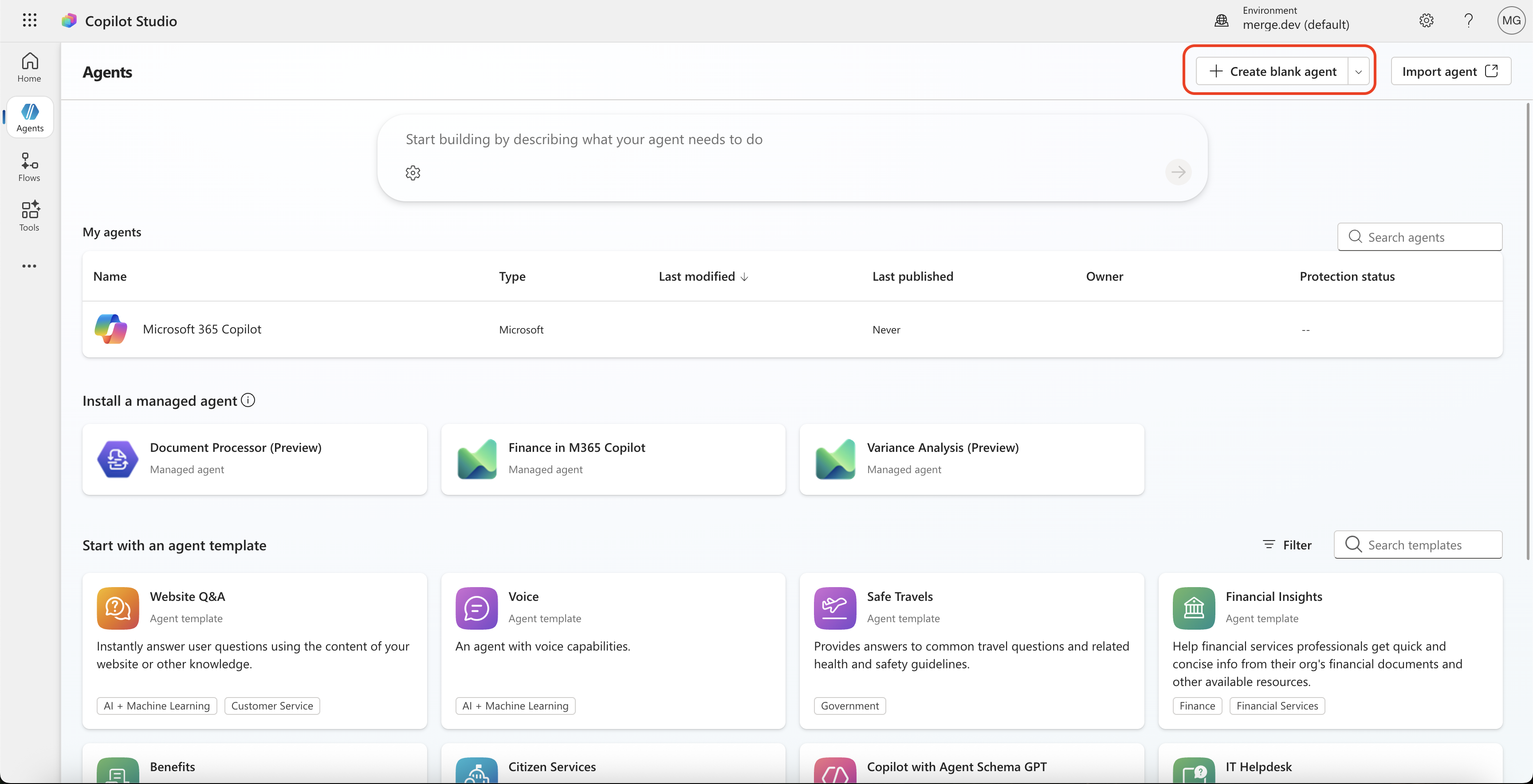
Open Copilot Studio and select the agent you want to connect Agent Handler to. If no agent exists yet, click Create blank agent.
-
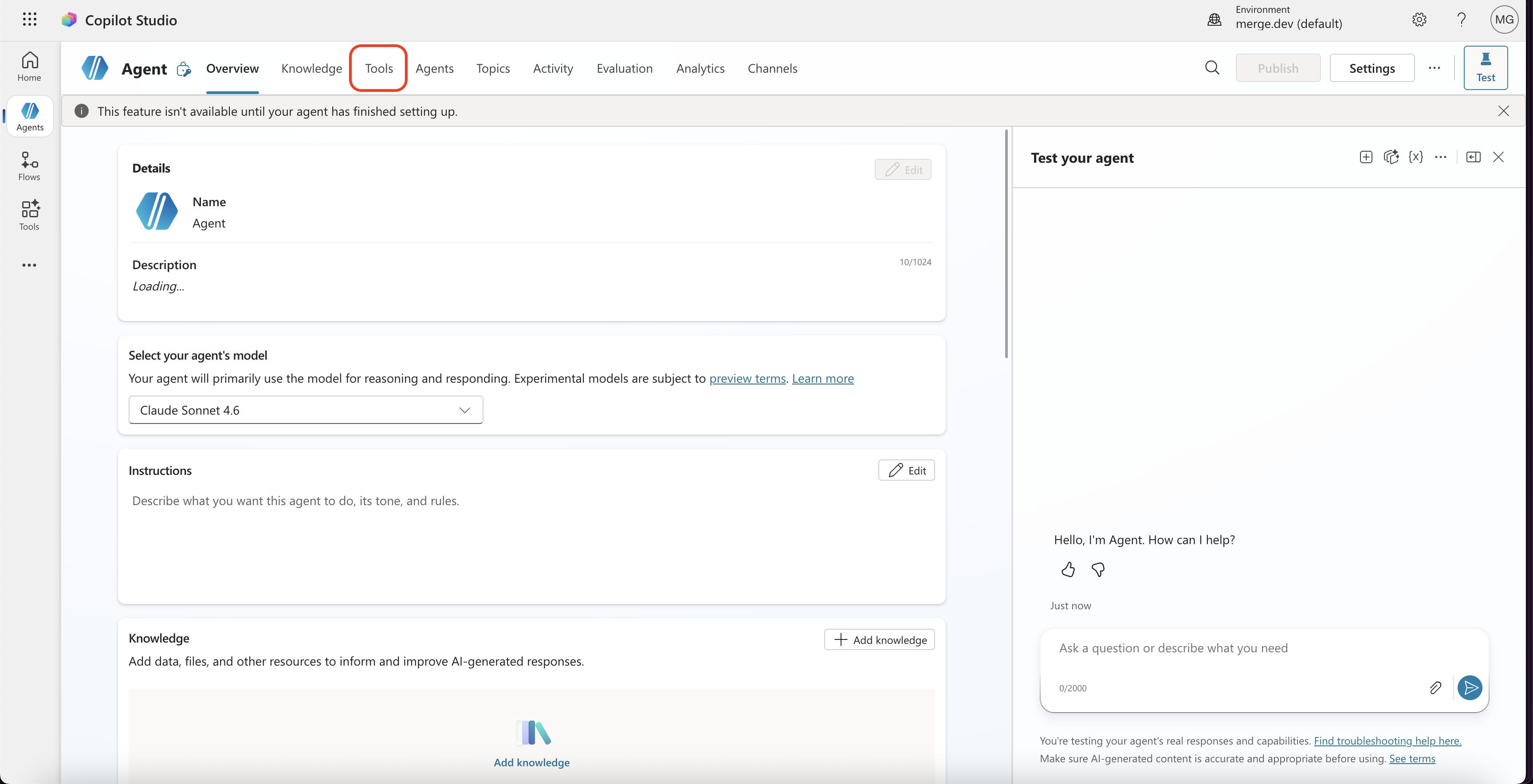
Inside the agent, click the Tools tab in the top navigation.
Step 2: Add a new MCP tool
-
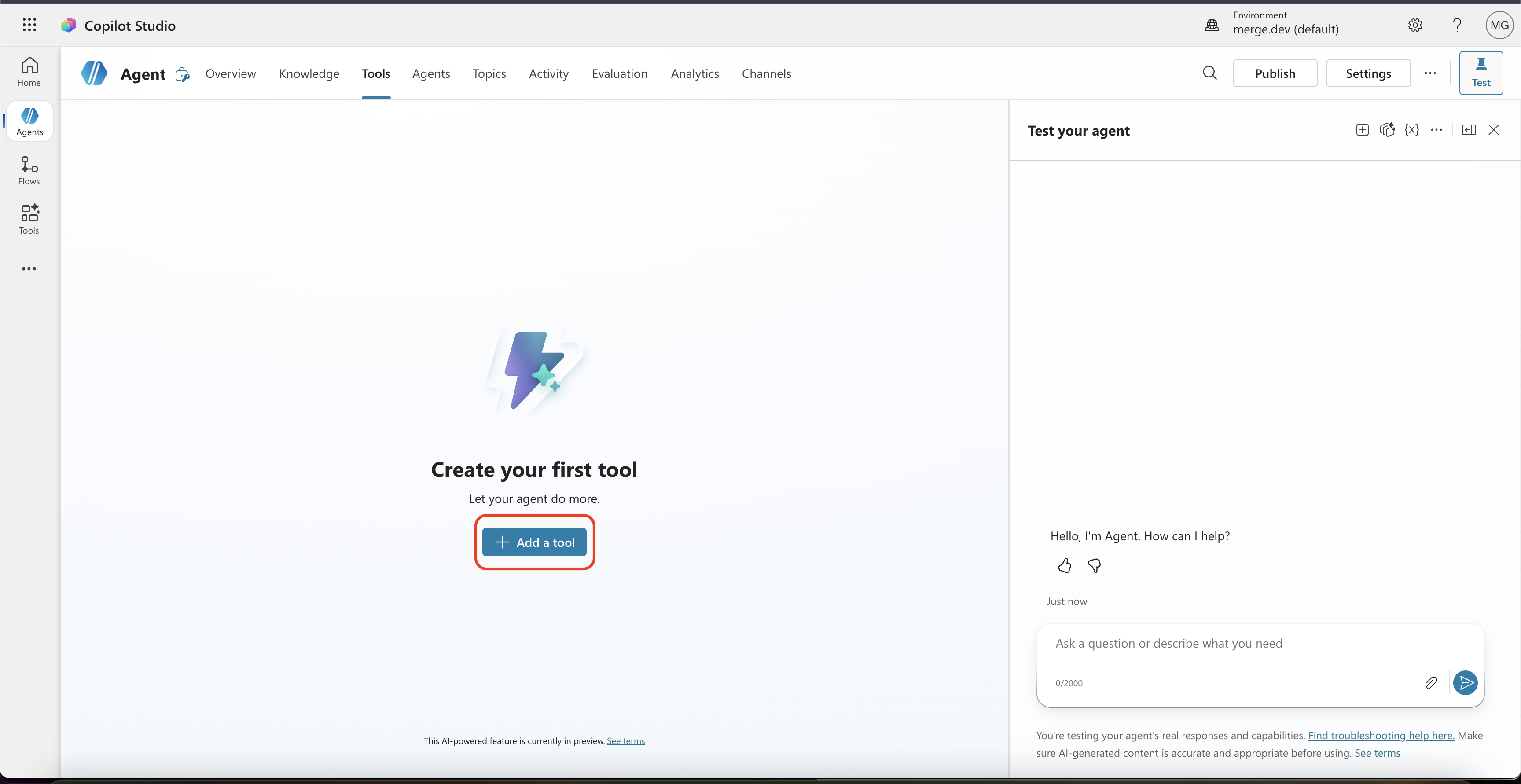
Click Add a tool.
-
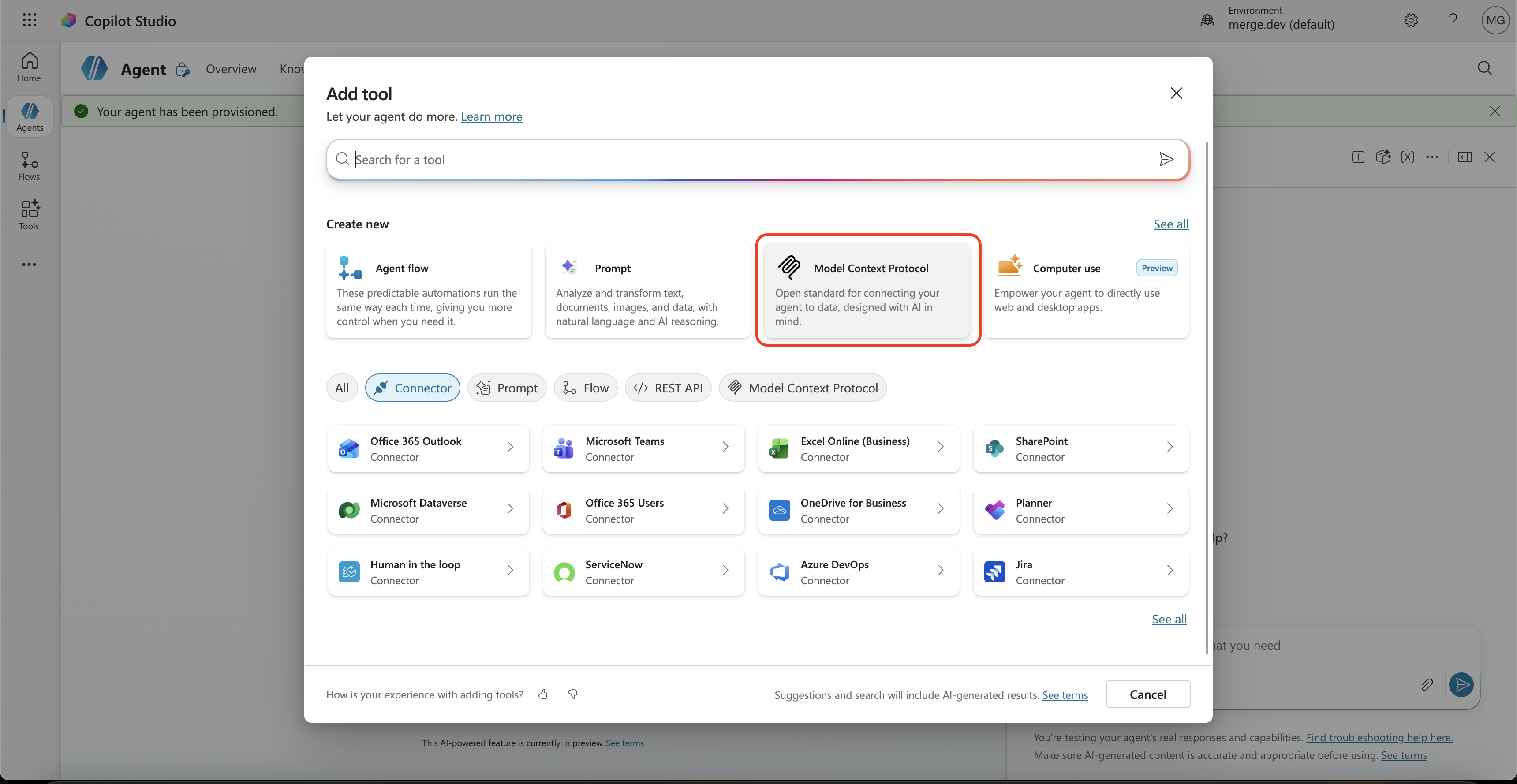
In the “Add tool” dialog, select Model Context Protocol.
Step 3: Configure the MCP server
In the “Add a Model Context Protocol server” form, enter the values from the Values you will enter in Copilot Studio table:
- Server name: any descriptive name
- Server description: any description
- Server URL:
https://ah-api.merge.dev/api/v1/tool-packs/{Tool Pack ID}/registered-users/{Registered User ID}/mcp - Authentication: select API key
- Type: select Header
- Header name:
Authorization
Click Create.
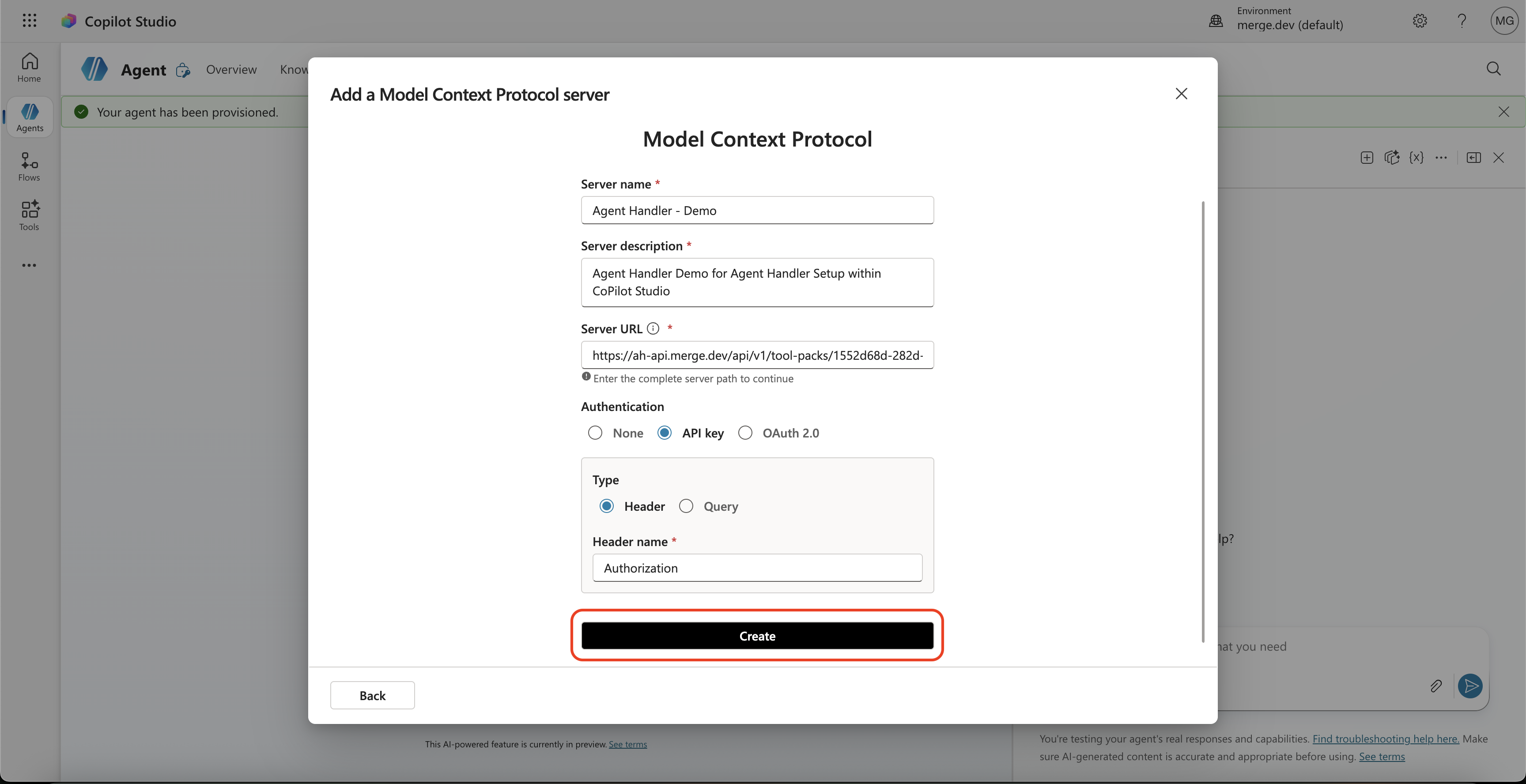
Step 4: Create a connection with your API key
After clicking Create, you will be prompted to attach a Connection (this is what stores your API key).
-
In the “Connection” dropdown, click Create new connection.
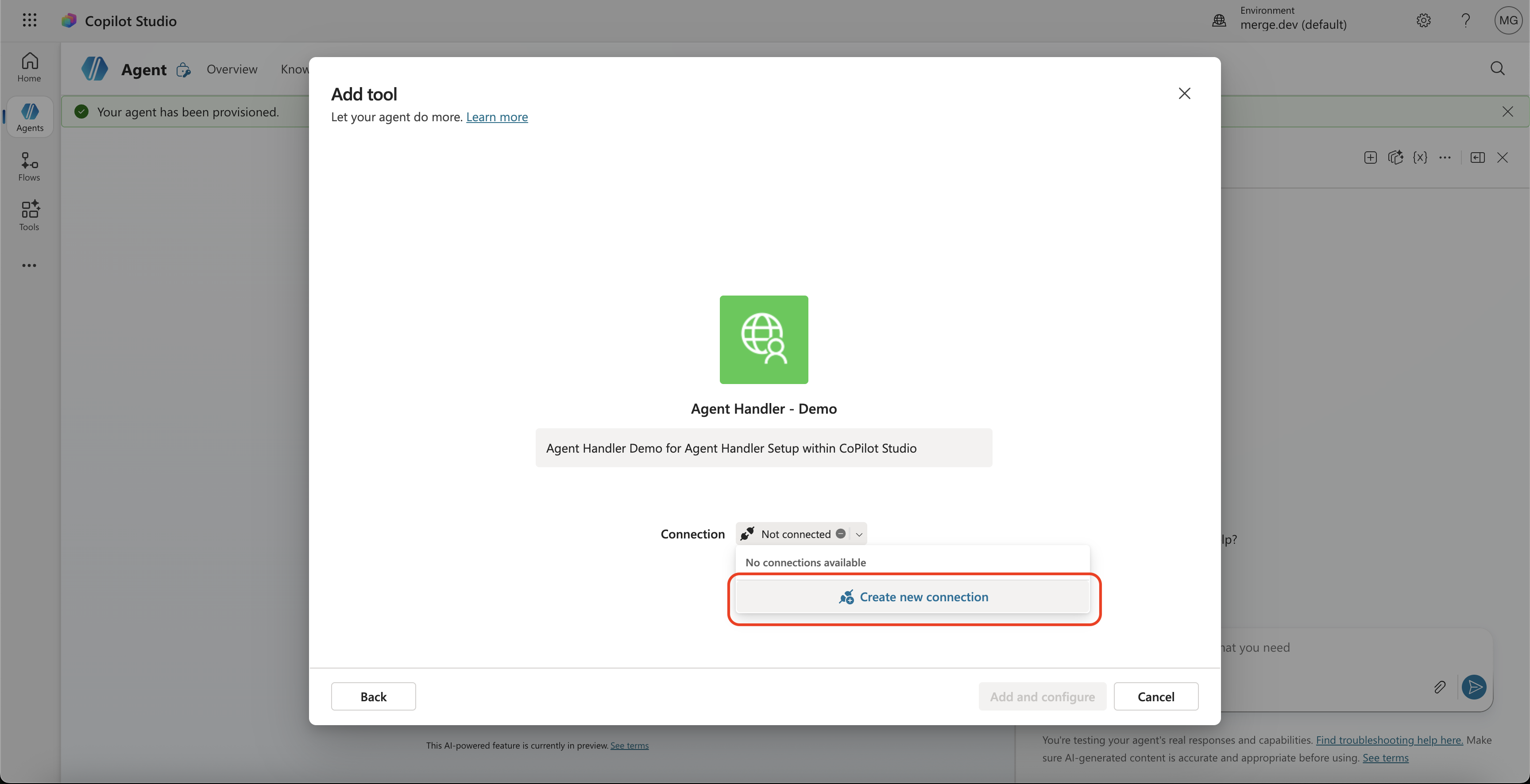
-
In the “Connect to Agent Handler” dialog, paste your API key in the format below, then click Create.
The value must include the
Bearerprefix (with a trailing space) before your API key. Without it, requests to Agent Handler will fail with401 Unauthorized.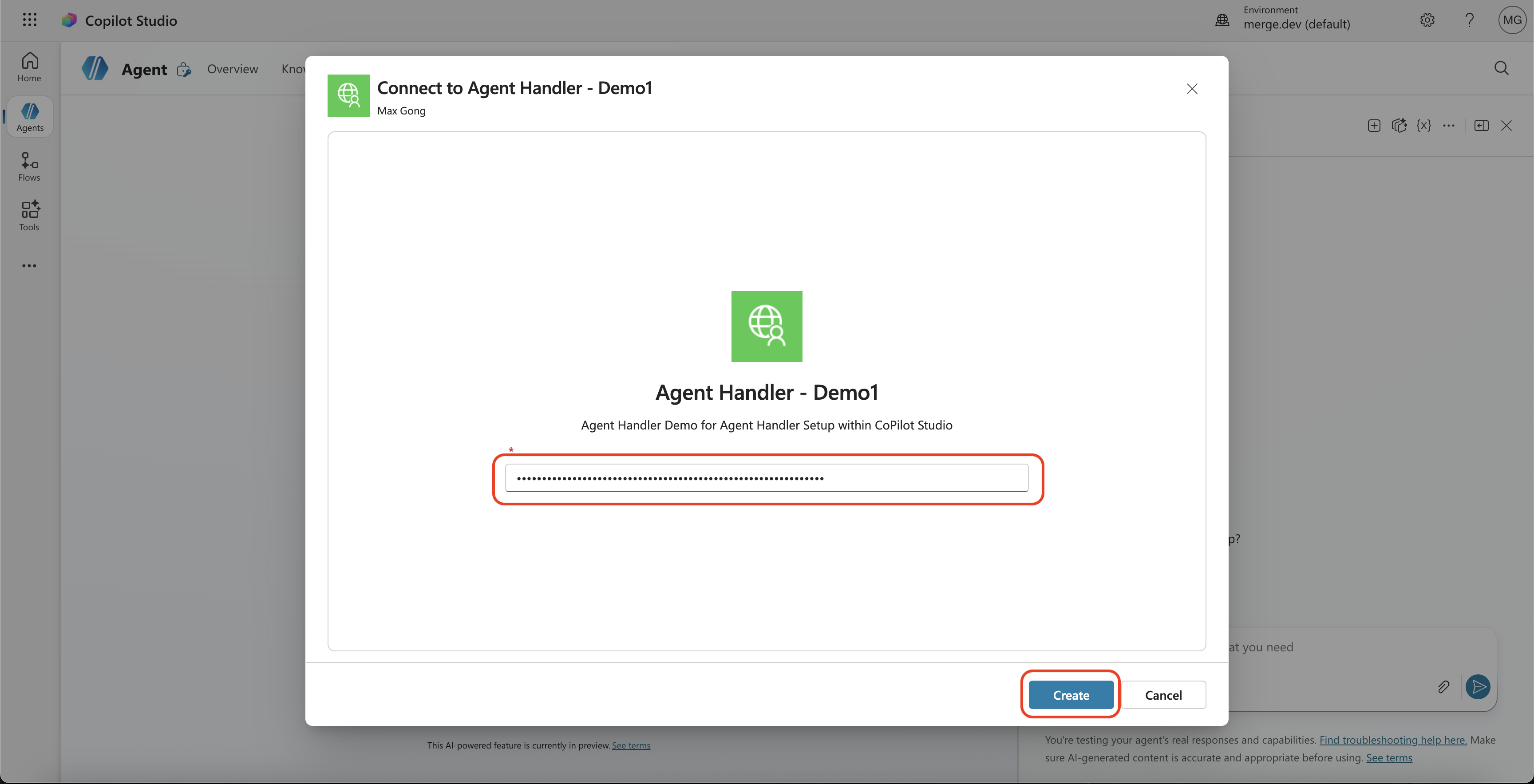
Step 5: Verify the connection
Open the tool you just created. On the Tool description page, the Tools section should list the tools exposed by your Agent Handler Tool Pack (for example, cms_coverage__list_local_coverage_articles).
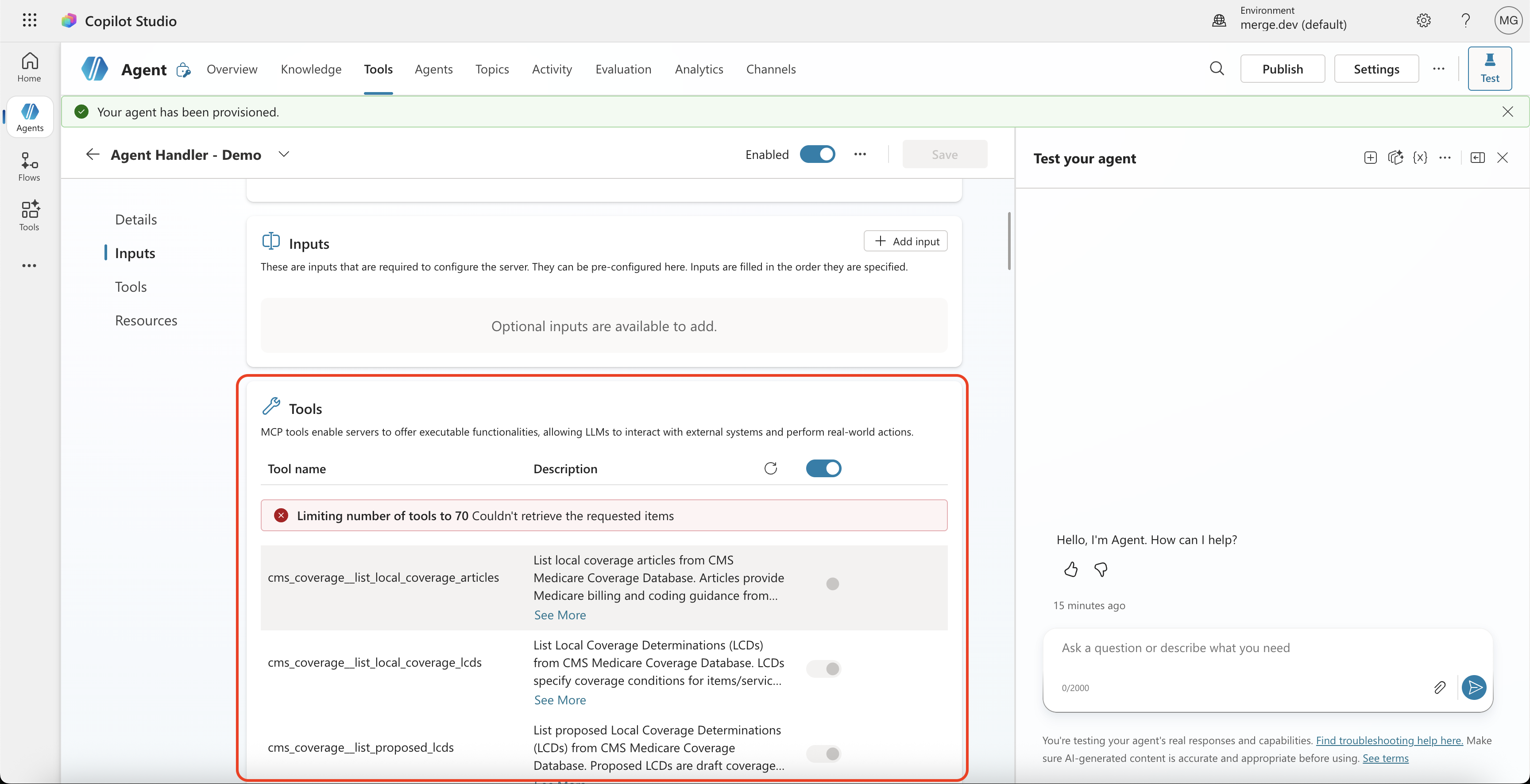
If the tools list is empty or shows an error, see Troubleshooting below.