
Local development
There are two ways to give your local agent access to Agent Handler tools:
- MCP server - point your IDE’s MCP config directly at Agent Handler’s hosted MCP URL. Use this for IDEs without a
merge setuptarget (Windsurf, VS Code) or if you’d rather configure MCP yourself. - Merge CLI - two commands plus a one-line setup that wires the CLI into your agent’s config. Works with Claude Code, Cursor, and any agent that reads
AGENTS.md(Codex, Aider, etc.).
Both paths below start with merge login, which opens a browser. If the agent is doing the setup and no person is there to complete it, take the agent quickstart instead, which needs no browser and no account.
Option 1 - MCP server
Point your IDE’s MCP config at Agent Handler’s hosted MCP URL.
Add Agent Handler to your IDE
Pick your client:
Claude Code
Codex
Cursor
Windsurf
VS Code
Other MCP clients
Verify the connection
Restart your IDE and confirm agent-handler appears in its MCP server list. In Claude Code, run:
You should see agent-handler listed under Local MCPs with a connected status.
Add tools
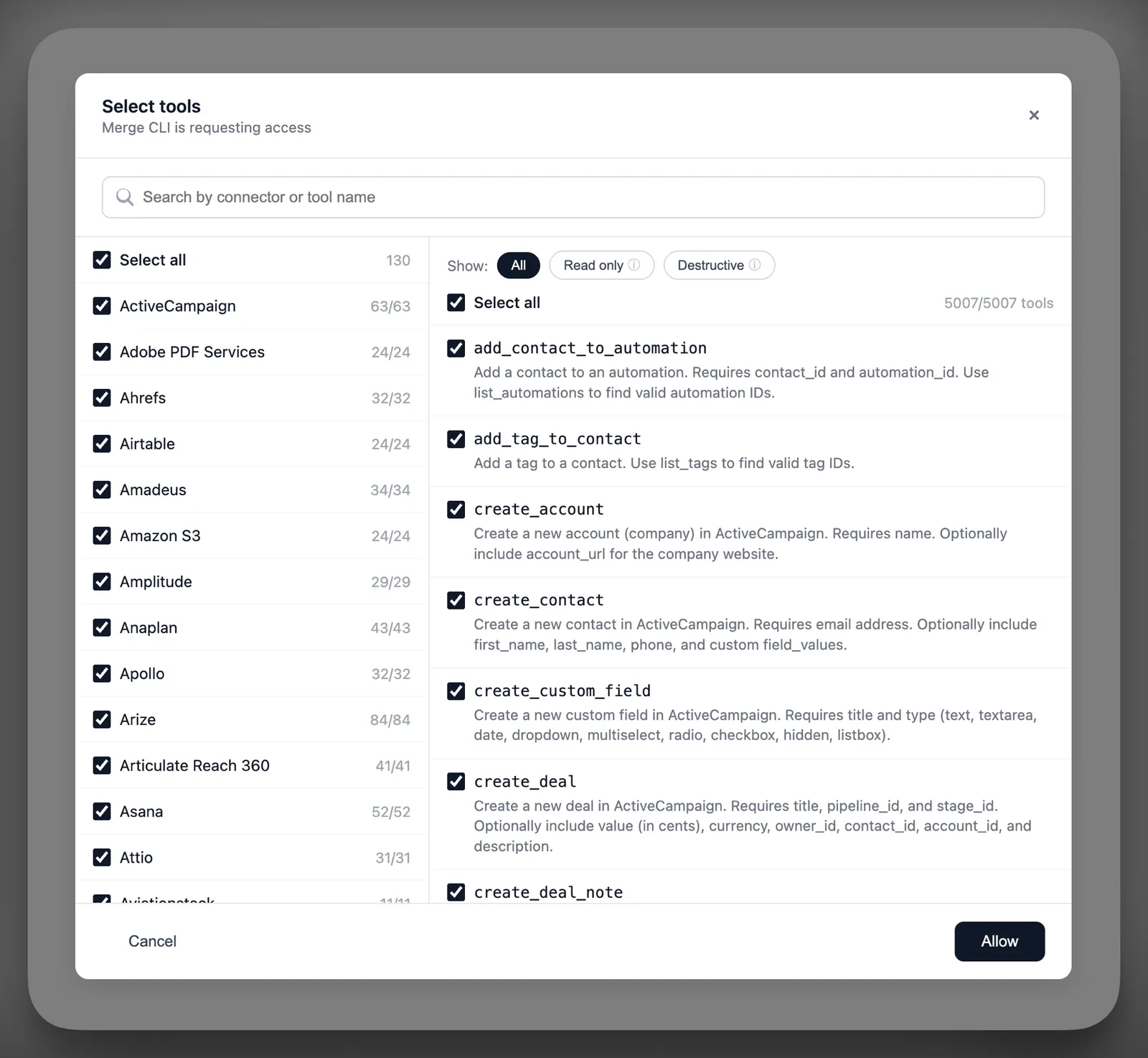
Select the agent-handler MCP from the list. This opens a browser window where you can pick the tools you want your agent to access.
Option 2 - Merge CLI
Connect the CLI to your agent
merge setup writes a short usage guide into your agent’s instruction file so it knows when to call merge search-tools and merge execute-tool. Pick your agent:
Claude Code
Cursor
Codex / AGENTS.md
Writes a ## Merge CLI section to CLAUDE.md and adds Bash(merge *) to .claude/settings.json so Claude Code can run the CLI without prompting.
Run from the root of the project where you want the agent to use Merge tools. Re-run safely - the command is idempotent.
Next
Configure what tools your agent should be able to call with Tool Packs.